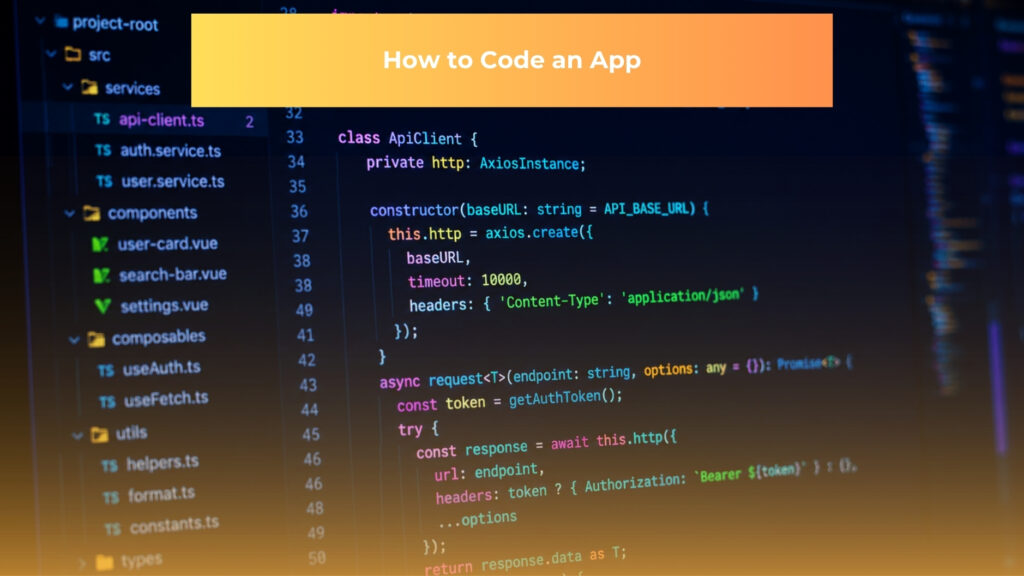
This guide teaches you how to code an app from a clear idea to a launched product, with enough detail to help you make real decisions instead of collecting disconnected tutorials. You will learn three practical paths: traditional coding, vibe coding, and no-code development. Each path gives you a different balance of control, speed, cost, and technical responsibility.
The scope is focused on mobile apps and web apps, including booking tools, marketplaces, customer portals, internal dashboards, productivity apps, and simple software products for small businesses. This guide does not cover games, embedded software, operating systems, firmware, or hardware-level programming, because those require different tools, testing methods, and performance constraints.
This guide is for you if you want to:
- Understand how to code an app through the traditional route, where you choose a platform, write the source code, connect data, test the product, and publish it yourself or with a developer.
- Use AI tools to generate and revise code faster, while still keeping enough technical awareness to review what the tools produce.
- Launch an app-like product without writing code.
By the end, you will know how to code an app by defining a first version, choosing the right technology stack, designing the core screens, writing or generating working code, testing real user flows, publishing to the App Store or Google Play, and maintaining the product after launch.
>> Does Every Retailer Need a Retail Mobile Application?
TRADITIONAL CODING
What You Need Before You Start Coding an App
Before you start learning how to code an app, you need a platform decision, a programming language, a development environment, and a small product plan that keeps your first build realistic. These choices shape every later step, because an iPhone app, an Android app, and a cross-platform app use different tools, project structures, testing workflows, and publishing requirements.
Start with the minimum setup below:
- A laptop that can run modern development tools. Use a Mac if you plan to build for iPhone, because Xcode runs on macOS only.
- A development tool such as Xcode for iOS, Android Studio for Android, or Visual Studio Code for React Native, Flutter, and web apps.
- Git for version control, plus a GitHub or GitLab account so you can save code history safely.
- A physical test device when possible, because simulators do not always expose real keyboard, camera, notification, layout, and performance behavior.
- A one-page product brief that states the user, problem, first workflow, required screens, and launch target.
When this setup is complete, you should be able to create a blank project, run it locally, save the first version in Git, and explain what your app does in plain language.
Choose your platform: iOS, Android, or both
Choose the platform based on your first users rather than personal preference. If your first audience is mostly using iPhone, iOS should come first because the design conventions, payment flow, and App Store submission process will shape how you code the first version. If your first audience is mostly using Android, Android should come first because device variety, screen sizes, and Google Play submission rules will affect your build and test plan.
Choose both iOS and Android when the business case requires both from the first release, such as a consumer app where excluding one platform would block adoption. If you need both but have limited time, a cross-platform framework can reduce duplicated development work, although you still need to test separately on each operating system.
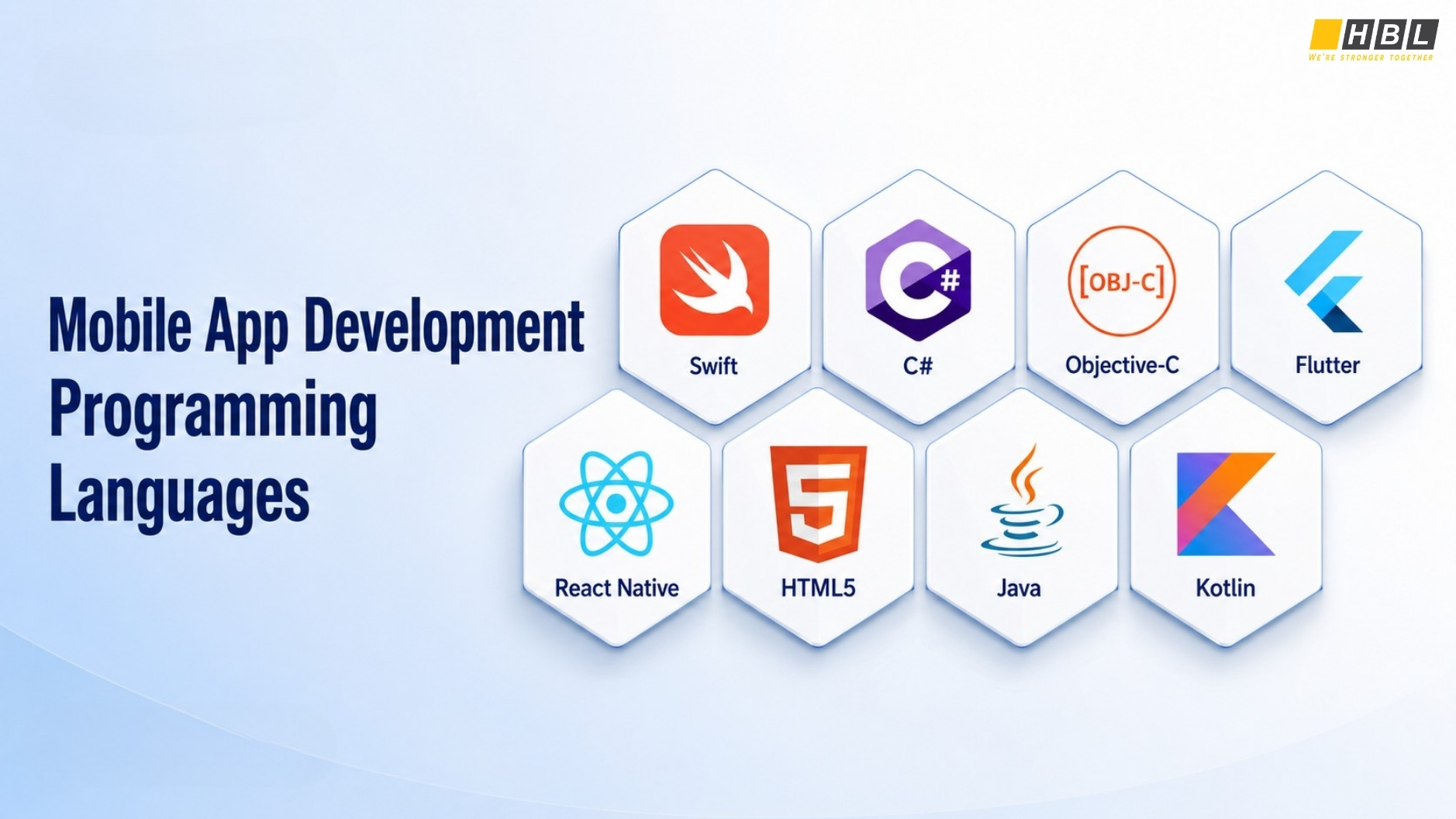
Pick the right programming language for your app
Pick the language that matches your platform:
- Use Swift with SwiftUI for native iOS development. Apple’s ecosystem is built around Xcode, Swift, and Apple platform APIs.
- Use Kotlin with Android Studio for native Android. Kotlin is the modern standard and works directly with Jetpack Compose.
- Use JavaScript with React Native for one shared codebase across iOS and Android, if you are comfortable with web-style component development.
- Use Dart with Flutter for a consistent interface across platforms, if you can accept learning Flutter’s widget system.
- Use Python for backend logic, automation, AI features, or data processing, rather than for native mobile screens.
Set up your development environment
Install the development environment that matches your stack. For iOS, install Xcode from the Mac App Store, create a new iOS project, select SwiftUI, and run the sample app in the iPhone simulator. For Android, install Android Studio, create a new project with Kotlin and Jetpack Compose, then run it in an Android emulator. For React Native or Flutter, install Visual Studio Code, Node.js, Git, and the platform-specific SDKs required by your framework.
When the environment works, create a blank app, run it without errors, and commit the initial project files to Git. This gives you a stable starting point before you begin changing screens, adding packages, or connecting external services.
Step 1 — Define Your App Idea and Validate the Market
Define the smallest useful version of your app before you write code. This step matters because how to code an app depends on the problem you are solving, the user you are serving, and the first successful action the app must support.
Write one clear product sentence that names the user, the problem, and the outcome. For example: “This app helps freelance designers track project expenses, photograph receipts, and export monthly reports for tax preparation.” When this is done correctly, you should have a statement that a stranger can understand without extra explanation.
Validate the idea before building the interface. Talk to five to ten people who match the target user. Ask what they use now, where the current process breaks, and what would make them switch.
You can also:
- Create a simple landing page with a waitlist form.
- Run a small keyword search to measure search interest.
- Post the concept in a relevant online community.
When validation works, you should hear repeated pain points and see evidence that people want the outcome enough to act. If people say the idea sounds good, ask whether they would pay for it, replace an existing tool with it, or join a test group this month.
Step 2 — Plan Your App: Features, User Flow, and Wireframes
Plan your app as features, screens, and user actions before you design the final interface. A clear plan prevents wasted coding time because missing screens, unclear data flows, and unnecessary features are far harder to fix after development has started.
Write the feature list for version one. Keep it limited to the actions required for the main user workflow: sign up, create a profile, add an item, save data, receive confirmation, and view history. When complete, you should have a short feature list that supports one core job rather than a long wishlist.
Map the user flow from the first screen to the completed outcome. If you are building a booking app, the flow may start with service selection, move to calendar availability, continue to user details, and finish with confirmation. When the flow is correct, you can trace every screen and button without inventing missing steps.
Create low-fidelity wireframes in Figma, FigJam, Balsamiq, or a notebook. Draw each screen with labels for inputs, buttons, menus, and messages. When the wireframes are done, you should know what every screen displays and what happens after the user taps the main action.
Remove anything from version one that does not help the user complete the first successful workflow. Learning how to code an app is much easier when the first version has a narrow purpose and a visible finish line.
Step 3 — Choose Your Tech Stack
Choose your tech stack before you start writing production code. This decision shapes how to code an app because the stack determines your programming language, app structure, hosting options, database, test process, and long-term maintenance path.
Frontend frameworks and UI libraries
Choose the frontend based on the platform experience you want to deliver:
- SwiftUI for iOS gives you a modern way to build native screens in Xcode, with direct access to Apple platform features.
- Kotlin with Jetpack Compose gives you a native Android interface that works closely with Android Studio.
- React Native lets you use JavaScript and share much of the codebase across iOS and Android.
- Flutter lets you use Dart and build a highly consistent interface across platforms.
When this decision is complete, you should have a named frontend stack that matches your first launch platform and your ability to maintain the code later.
Backend, database, and APIs
Choose a backend when your app needs user accounts, saved data, payments, notifications, file uploads, admin controls, or shared content across devices.
- Firebase handles authentication, Firestore databases, storage, and push notifications in one platform.
- Supabase gives you a PostgreSQL database, authentication, APIs, and storage, which works well when you want SQL structure with managed services.
- A Python backend with FastAPI works well for AI features, workflow automation, reporting, and complex integrations.
When this decision is done, you should be able to draw a simple architecture showing the app frontend, backend service, database, and external APIs.
Cross-platform vs native: what to pick
Choose native development when your app depends heavily on device features, platform-specific interface patterns, strict performance, or deep integration with iOS or Android. Native code gives you the most direct access to the operating system, although you need separate development work when you support both platforms.
Choose cross-platform development when speed matters and the app does not require heavy native customization. The trade-off is direct: native development gives you deeper platform control, while cross-platform development can shorten the build timeline if your app’s interface and logic are suitable for shared code.
Step 4 — Design Your App’s UI/UX
Design the interface around the main user workflow before you start polishing visual details. How to code an app includes design decisions because every field, button, error state, and loading message eventually becomes code that users interact with directly.
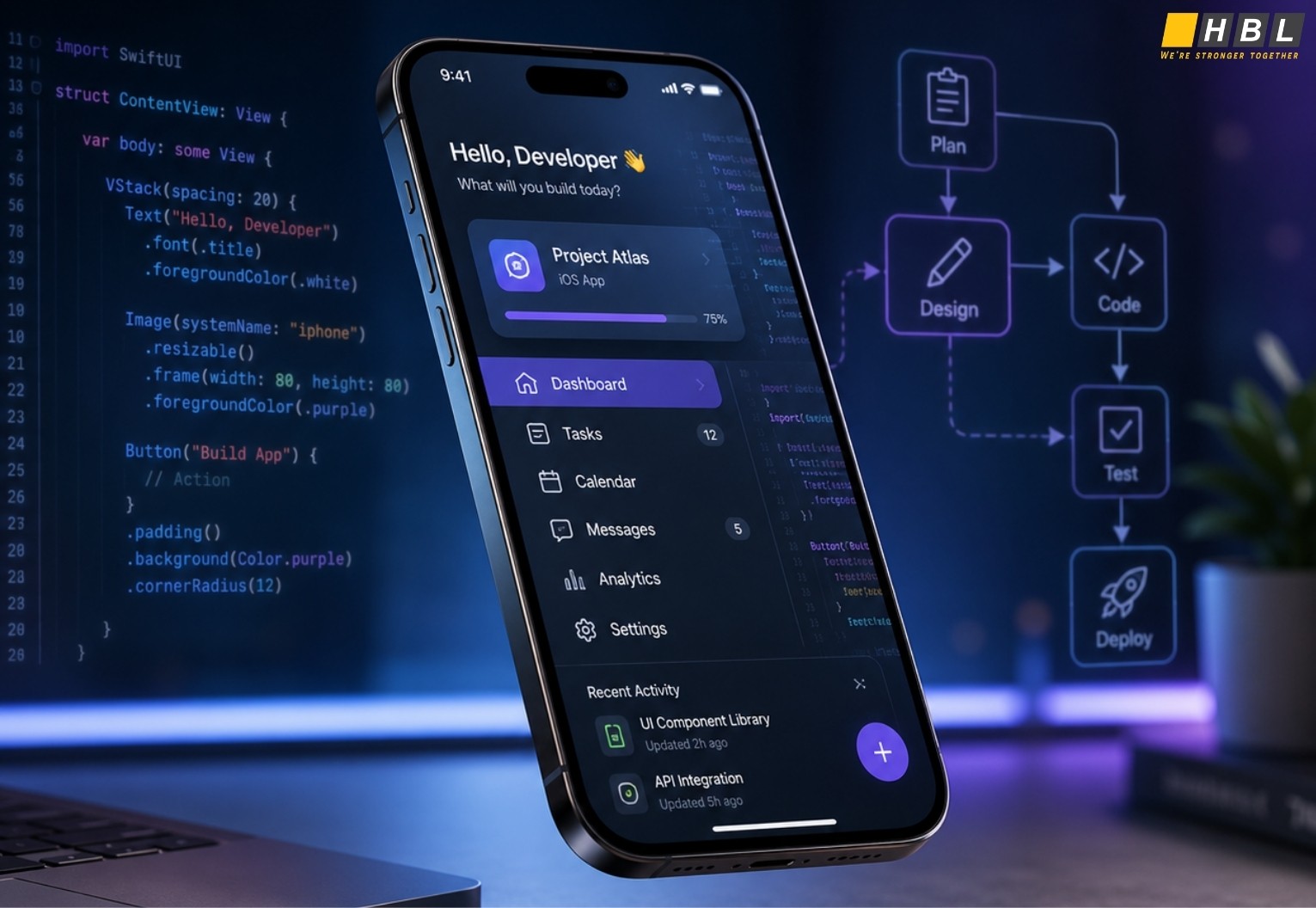
Create a visual design in Figma using your wireframes from Step 2. Define screen layout, spacing, button styles, typography, form fields, error messages, and empty states. When complete, you should have screen designs that can be translated into code without constant guessing.
Design the full behavior of each important screen. A sign-up screen needs:
- A normal state
- Input validation
- A loading state
- An error state
- A success path
A dashboard needs a populated state, an empty state, and a state for failed data loading. When these states are included, you can code the app with fewer surprises.
Prepare your assets before development. Export logos, icons, illustrations, and images in the correct formats and sizes for your platform. Check Apple’s Human Interface Guidelines for iOS conventions and Material Design guidance for Android conventions, especially for navigation, forms, dialogs, and permissions.
Beginners commonly design only the best-case path. <u>Add missing states before you write a single line of code</u>, because users will enter wrong passwords, lose internet connection, abandon forms, and open the app with no saved data.
Step 5 — Start Writing Your Code
Write the app one workflow at a time, beginning with the screens and logic that create the first user value. This is where how to code an app becomes practical, because your plan turns into files, components, routes, data models, API calls, and testable behavior.
Build the frontend: screens and navigation
Create the first screen in your chosen framework, then connect it to the next screen through navigation:
- In Xcode, create a SwiftUI View for the home screen and another for the detail screen.
- In Android Studio, create Kotlin composables and connect them through Navigation Compose.
- In React Native, create screen components and use React Navigation.
- In Flutter, create widgets and define routes.
When this works, you should be able to open the app, move between the main screens, and see placeholder content where real data will later appear. Keep the first version simple enough to run after every change, because frequent testing helps you catch errors while they are still small.
Build the backend: data and logic
Create the data model that supports the main workflow. If you are building a task app, your model may include users, projects, tasks, status, due dates, and comments. When this model is correct, the app’s data structure should match the nouns and actions in your product plan.
Add authentication before saving personal data. Firebase Authentication, Supabase Auth, Auth0, and Clerk are common options depending on your stack. After authentication works, create the basic operations that let the app create, read, update, and delete records. When the backend is ready, you should be able to save a test record and retrieve it in the app.
Connect your app to APIs and services
Connect your frontend to the backend through API calls or a platform SDK. Store API keys in environment variables and keep secrets out of public Git repositories. Beginners sometimes expose private keys while learning how to code an app, which creates security and billing risks.
Add external services only when the main workflow needs them:
- Stripe for payments
- SendGrid or Postmark for transactional email
- Firebase Cloud Messaging for push notifications
- Google Maps Platform when location features are required
When the integration works, the user should be able to take an action in the app and see the correct result saved, sent, charged, or displayed.
Step 6 — Test Your App Thoroughly
Test your app across the main user workflows before you launch. Testing is a required part of how to code an app because working code in your development environment can still fail on real devices, slow networks, unusual inputs, and user behavior you did not predict.
Functional, usability, and performance testing
Run functional testing on every critical workflow. Create an account, log in, complete the main action, edit saved information, log out, return later, and confirm that the data is still correct. Each core workflow should pass on a simulator and at least one physical device.
Run usability testing with three to five people who resemble your target users. Give each person a task, watch where they hesitate, and avoid explaining the interface while they use it. You should collect specific observations such as unclear button labels, confusing navigation, missing confirmation messages, or screens that users skip entirely.
Run basic performance testing before release. Check launch speed, screen transitions, image loading, database queries, and crash reports. Test on older devices if your audience uses them. The app should open, load the main screen, and complete the first workflow without visible delay under normal network conditions.
How to collect real user feedback
Collect real feedback through a controlled test release:
- Use TestFlight for iOS.
- Use an internal testing track in Google Play Console for Android.
- Use a password-protected staging deployment for a web app.
Ask testers to report the device, operating system, action taken, expected result, and actual result. A message such as “the app is broken” is too vague, while “on iPhone 13, tapping Save after uploading a receipt keeps the loading spinner on screen” gives you a clear starting point. Group reports by workflow and fix the issues blocking the main user outcome first.
Step 7 — Publish and Launch Your App
Publish your app after the release build is signed, tested, documented, and ready for store review. Launch is part of how to code an app because app stores require privacy information, screenshots, metadata, review notes, age ratings, and compliance details in addition to the code itself.
How to code an app for iPhone and submit to the App Store
When you learn how to code an app for iPhone, submission runs through Apple’s developer ecosystem. Enroll in the Apple Developer Program, listed by Apple at $99 USD per membership year, then prepare your App Store Connect record with screenshots, description, support URL, privacy details, age rating, and review notes.
Apple’s App Store Review Guidelines organize requirements around Safety, Performance, Business, Design, and Legal categories. Check these before you submit.
Open Xcode, select the correct signing team, set your bundle identifier, choose a release version, then use Archive and Distribute App to upload the build. When submission is ready, App Store Connect should show a valid build, complete metadata, and no unresolved warnings.
How to code an app for Android and publish on Google Play
When you learn how to code an app for Android, submission runs through Google Play Console. Create a developer account, which Google lists at a $25 USD one-time registration fee, then complete your app listing, content rating, data safety form, screenshots, and testing setup.
New apps on Google Play are required to publish in Android App Bundle (AAB) format, while APK files remain useful for local installation and some testing scenarios. In Android Studio, create a signed release build, upload the AAB to an internal testing track, invite testers, and confirm that installation works before production release. Google Play Console should show a signed bundle assigned to a testing or production track when the release is ready.
Step 8 — Maintain, Update, and Grow Your App
Maintain your app after launch by fixing defects, reviewing analytics, updating dependencies, and improving the core workflow. How to code an app does not end at publishing, because operating systems change, libraries receive security updates, users report issues, and store policies can affect future releases.
Set up analytics that respect your users’ privacy and support product decisions. Firebase Analytics, PostHog, and Mixpanel can show activation, retention, conversion, crash rates, and completion of the main workflow. When analytics is configured correctly, you should know where users drop off without needing to read individual user behavior manually.
Create a maintenance routine that you can actually follow:
- Review crash reports after each release.
- Update dependencies on a planned schedule.
- Test the app against new iOS and Android versions before major operating system updates reach most users.
Use user feedback to decide what to build next. If several users from the same segment request the same improvement, connect that request to a product metric before building it. If onboarding has a high drop-off rate, improve the first experience before adding advanced features.
AI-ASSISTED CODING
How to Vibe Code an App: The AI-Powered Shortcut
Vibe coding is an AI-assisted development workflow where you describe the software you want, review the generated output, give feedback, and repeat until the app behaves correctly. If you are learning how to code an app, this path can help you move from idea to prototype faster, but it still requires testing, review, and technical ownership.
What is vibe coding and where it came from

Andrej Karpathy popularized the term vibe coding in early 2025 to describe a way of building software with natural language prompts and AI-generated code. In practice, vibe coding means you explain the feature, screen, bug, or workflow you want, then let an AI tool generate or edit the code.
You still need to run the app, read the output, test edge cases, and decide whether the implementation is acceptable. How to code an app with AI still requires judgment, even when the first draft comes from a model.
The vibe coding workflow: prompt, review, refine, deploy
Start with a prompt that gives the AI enough context to make useful decisions. Include the app purpose, target user, tech stack, main screens, data model, authentication needs, and design constraints. Instead of asking for “a booking app,” ask for “a React Native app with sign up, service selection, calendar availability, booking confirmation, and a Supabase backend.”
Review the generated files before you keep building. Check whether the AI created the correct project structure, whether package names match your stack, whether the app runs locally, and whether sensitive values are stored safely.
Refine the app by giving specific feedback. Include exact error messages, screenshots, expected behavior, actual behavior, and the file name involved. This is the safest way to learn how to vibe code an app because you stay involved in the loop instead of accepting generated code blindly.
Deploy only after you test the main workflow and inspect the production settings. AI can speed up how to code an app, but deployment still requires environment variables, access control, database rules, and store or hosting configuration.
Best vibe coding tools right now
Use the tool that matches your current skill level and project type:
- Cursor — useful when you want an AI coding assistant inside a code editor and need help editing an existing project.
- Lovable — useful when you want to generate web app prototypes from prompts and iterate visually.
- Bolt — useful when you want fast browser-based prototyping without setting up a full local environment first.
- Replit — useful when you want coding, hosting, collaboration, and environment setup in one browser workspace.
- Claude Code — useful when you want an agentic coding assistant that can work across files in a full developer workflow.
Each tool can help you move faster, but none removes the need to understand the app’s structure. Keep Git history clean, test changes before adding new prompts, and ask the tool to explain files when you do not understand them.
When vibe coding works, and when it does not
Use vibe coding for prototypes, internal tools, admin dashboards, landing-page-connected apps, and early market tests where speed matters and the risk is manageable. It works best when you can describe the desired workflow clearly and review the result with enough technical judgment to catch obvious problems.
Avoid relying on vibe coding alone for:
- Production systems that require security audits
- Large codebases with complex state management
- Financial workflows or healthcare data
- Enterprise access control
- Apps with strict performance requirements
In those cases, AI can still assist development, but an experienced engineer should review architecture, authentication, permissions, data storage, and deployment. Treat AI as an accelerator, not a substitute for accountability.
NO-CODE
How to Build an App Without Code in 2026
You can build an app without code in 2025 by using a platform that provides the interface builder, data layer, hosting, workflow logic, and deployment process for you. This path is useful when your goal is to test a workflow, support a small team, or launch a first version faster than traditional coding training would allow.
>> Top 7 best low code no code platforms
Approach 1 — AI app builders
AI app builders such as Lovable and Base44 let you describe the product in natural language, generate an interface, and revise the output through prompts. This approach suits simple web apps, client demos, internal tools, early SaaS concepts, and workflow prototypes where the structure is clear enough to describe in plain English.
Check authentication, permissions, database visibility, and public sharing settings before real users enter data. If your app needs deep custom logic, strict compliance, or long-term source code ownership, assess whether the platform can support later releases. For many beginners, this approach is a practical bridge between no-code and learning how to code an app manually.
Approach 2 — Visual drag-and-drop builders
Visual drag-and-drop builders such as Bubble and Webflow let you create screens, layouts, workflows, and content structures through a visual editor. Bubble suits web applications with user accounts, databases, and custom workflows. Webflow suits marketing sites, content-driven pages, and interfaces where design control matters more than complex app logic.
This approach reduces the need to write syntax, but it still requires product thinking. You need to understand fields, conditions, permissions, responsive behavior, workflow triggers, and user states. Visual builders fall short when you need low-level backend control, complex native mobile features, or highly customized performance behavior.
Approach 3 — Spreadsheet-to-app platforms
Spreadsheet-to-app platforms such as Glide and Softr turn structured data into user-facing apps, portals, directories, and internal tools. They suit use cases where the app already resembles a database: inventory trackers, employee directories, approval workflows, lightweight CRMs, and client portals.
This approach falls short when your app needs complex offline behavior, advanced role logic, custom algorithms, or highly interactive mobile experiences. If your business process already lives in Google Sheets or Airtable, these platforms can help you publish a useful first version without waiting until you fully learn how to code an app.
Approach 4 — Mobile-first no-code builders
Mobile-first no-code builders such as Adalo, FlutterFlow, and Thunkable focus on mobile screens, navigation, device behavior, and app-like interactions:
- Adalo suits simple mobile business apps, directories, and customer-facing workflows.
- FlutterFlow suits builders who want visual development connected to Flutter concepts and may want more technical flexibility later.
- Thunkable suits mobile prototypes, learning projects, and simpler app ideas.
These platforms fall short when your app requires deep native modules, heavy background processing, advanced offline logic, or strict enterprise security review. If you later decide to learn how to code an app, review export options and code quality before assuming the no-code project can become a developer-owned product.
How to choose the right no-code tool for your project
Match the tool to the product type, not the feature list:
- Choose an AI app builder when your app can be described clearly in prompts and your first goal is a working prototype.
- Choose a visual builder when layout, workflows, and web-based user journeys matter most.
- Choose a spreadsheet-to-app platform when your product is built around structured data.
- Choose a mobile-first builder when the phone experience is the center of the product.
Before committing, compare ownership, export options, pricing, user limits, integrations, permissions, and support. Moving platforms later is difficult because no-code tools store logic, layout, and data in platform-specific structures. If you plan to replace the first version with custom code later, document your data model and workflows from the beginning.
Code vs Vibe Code vs No-Code: Which Path Is Right for You?
Choose traditional coding when you want source code ownership, architectural control, long-term scalability, and the ability to customize security, performance, and integrations. This path fits you if you can invest months in learning, hire technical help, or work with a developer. It takes the longest, but it gives you the clearest foundation for a product that may grow beyond the first version.
Choose vibe coding when you have a clear app idea, basic technical literacy, and a need to prototype faster than manual coding alone would allow. This path fits you if you can review generated files, test behavior carefully, and give precise feedback to AI tools. Complex systems still need engineering review.
Choose no-code when you need a working workflow for a small team, internal process, client demo, or first market test. This path fits you when speed and budget matter more than source code ownership. Long-term customization, platform pricing, data portability, and migration effort become more important as usage grows.
FAQ
1. How long does it take to code an app?
How long it takes to code an app depends on scope, platform, and experience. A simple prototype can take one to four weeks, while a polished app with accounts, payments, admin tools, and testing can take three to six months. If you’re learning from zero, expect extra time before production work begins.
2. How much does it cost to code an app?
How much it costs to code an app depends on the build path:
- No-code platforms range from $0 to $100 per month for early projects.
- AI-assisted prototypes may cost under a few hundred dollars in tools.
- Custom development ranges from $10,000 to $500,000 depending on scope, quality, and team size.
3. Can I learn to code an app with no experience?
Yes, but start with one platform, one language, and one small workflow. Build a login screen, save data, display that data, and publish a test build. You’ll learn faster from a narrow shipped project than from broad tutorials without a finished app.
Read more:
– Top Object-Oriented (OOP) Programming Languages to Learn
– Mobile App Development Costs: What You Are Actually Paying For
– Software Development Life Cycle Phases: Step-by-Step Guide