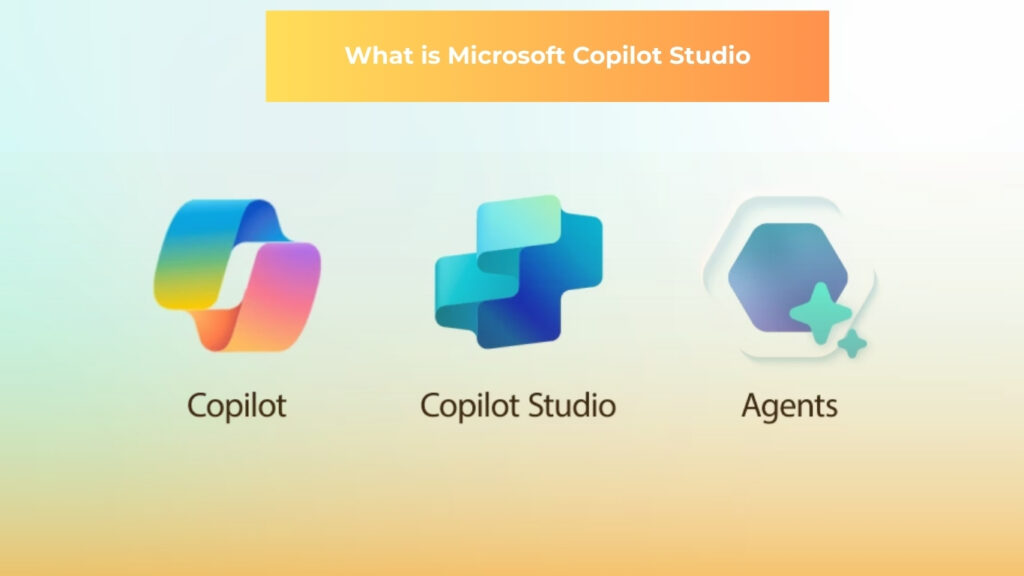
As AI advances in business efficiency, Microsoft Copilot Studio is gaining attention . This is an AI assistant development tool provided by Microsoft, and a next-generation Copilot development environment that allows users to build workflows and chatbots without coding. Its integration with Teams and Power Platform , allowing it to automate and optimize business processes, has been highly praised by many companies. However, many people have questions, such as “What exactly can it do?”, “How is it different from ChatGPT?”, and “How much does it cost?”
This article provides an easy-to-understand explanation of what Microsoft Copilot Studio is, its features, what it can do, how to install it, and its pricing structure. If you’re interested in using Copilot, be sure to read this article.
What is Microsoft Copilot Studio?
Microsoft Copilot Studio is an AI assistant development platform provided by Microsoft, a tool that allows you to freely design and customize Copilot (business support AI) to suit your company’s needs. Its notable feature is its no-code/low-code operation, making it easy for even non-engineers to build internal chatbots and workflow automation.
By connecting with Microsoft Teams, Power Platform, Azure and OpenAI, it becomes possible to streamline a variety of tasks, including document creation, inquiry response, and data acquisition. Copilot Studio is attracting attention as an innovative tool that uses AI to support decision-making and automate tasks while preventing tasks from becoming dependent on individual skills.
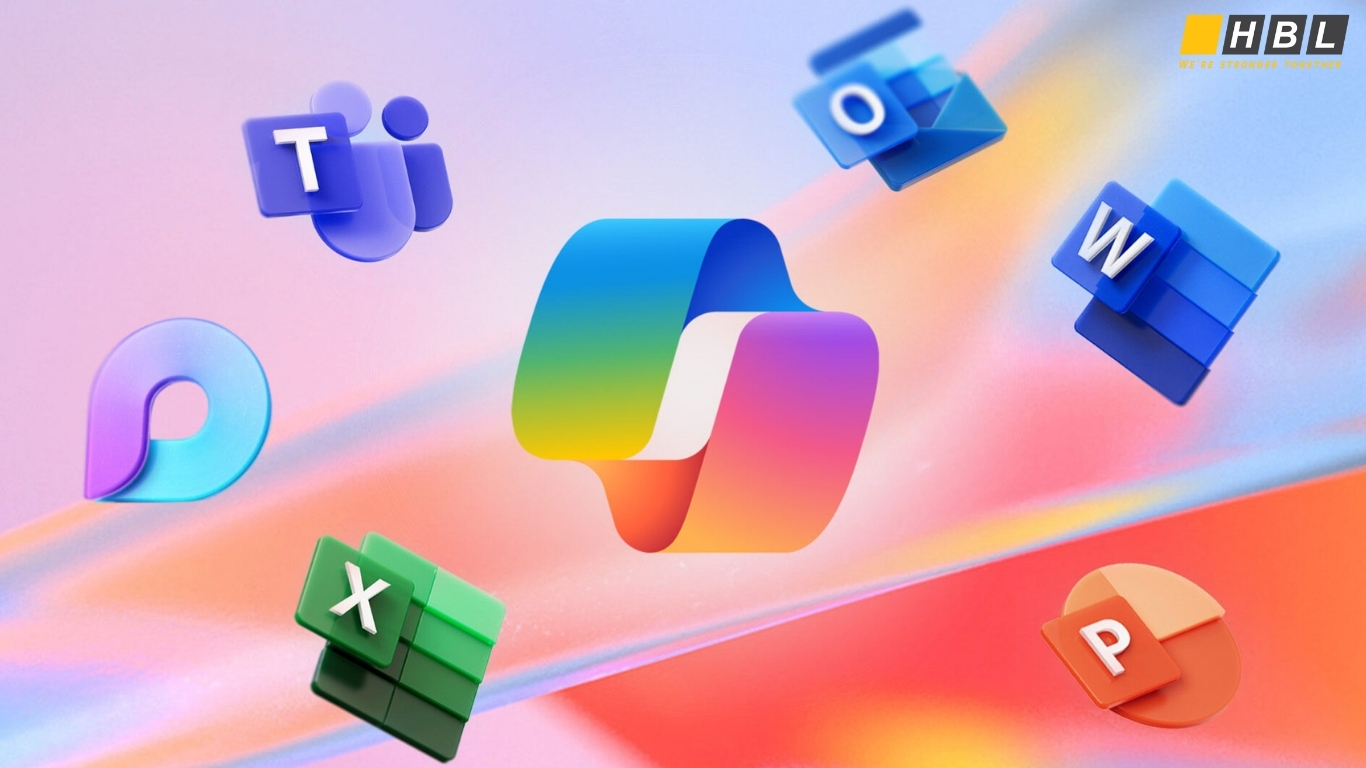
Microsoft Copilot is the collective name for the AI assistant built into Microsoft 365 products, including Word, Excel, PowerPoint, and Outlook. Based on large-scale language models (LLMs) such as ChatGPT , it automatically performs a variety of tasks based on natural language input, including writing sentences, analyzing data, assisting with email replies, and summarizing meetings.
Copilot dramatically improves the efficiency of knowledge work by referencing user input history and file content to provide business-specific suggestions and automate operations. Furthermore, because it can be used in a Microsoft environment that takes security and compliance into consideration, the barriers to adoption are low, and it has already been adopted by many companies.
Features of Microsoft Copilot Studio
Microsoft Copilot Studio is a no-code/low-code development environment that allows business users to easily build and utilize AI assistants. It is designed to integrate with business tools such as Microsoft 365 and Teams, allowing companies to smoothly incorporate AI functions into their existing workflows. Furthermore, by utilizing Azure OpenAI’s natural language processing technology, highly accurate interactions and contextual understanding are possible.
Copilot Studio meets Microsoft’s strict security and governance standards, making it a solution you can deploy with peace of mind. Here we will take a closer look at five features of Copilot Studio.
Build an AI assistant with no-code/low-code
Copilot Studio’s greatest strength is its no-code/low-code environment, which allows even non-engineers to create AI assistants. Development is integrated with the Power Platform, allowing for GUI-based configuration and drag-and-drop logic construction.
Templates are also available for common business scenarios, so even those without specialized knowledge can complete an AI bot in a short period of time. It also has the flexibility to allow professional developers to perform more advanced customizations, making it an attractive option for achieving both speedy business improvement led by the field and collaboration with the IT department.
Seamless integration with Microsoft 365 and Teams
Copilot Studio is designed to integrate closely with Microsoft 365 products (Word, Excel, Outlook, etc.) and the collaboration tool Teams. For example, AI can be used to provide support in a way that is naturally integrated into daily work, such as an FAQ bot that runs within Teams and reminder notifications linked to Outlook schedules.
Because users can receive AI support within an interface they are familiar with, the learning costs for new tools are reduced and the barriers to adoption are lower. For organizations unified within the Microsoft environment, this is an extremely effective solution for achieving both improved work efficiency and a better user experience.
High-precision natural language understanding with Azure OpenAI
Copilot Studio works with Azure OpenAI to provide highly accurate natural language processing using the latest large-scale language models ( LLMs ) such as ChatGPT. This allows for flexible responses to ambiguous questions and complex expressions, enabling advanced conversations that take context into account, rather than simply providing standard responses.
For example, in response to a request such as “Tell me about this month’s sales trends,” it is possible to extract the appropriate data and provide a summary of the key points. Furthermore, by having it learn business data in advance, it becomes easier to build an AI assistant that can adapt to the specific needs and rules of a company.
Custom GPT can be created using business data
Copilot Studio allows you to import your company’s business data (manuals, FAQs, chat history, etc.) and create a “Custom GPT” based on that data. This enables you to generate answers that conform to your company’s unique business flows and rules, which general generative AI cannot handle.
For example, you can flexibly build specialized AI for each department, such as an AI that can respond to questions about employee benefits for the HR department, or an AI that can respond based on product specifications for customer support. The introduction of such personalized AI will greatly improve the efficiency of responding to internal inquiries and supporting business operations.
AI can be implemented in a secure environment
When companies adopt AI, they are concerned about ensuring security and data governance. Copilot Studio complies with Microsoft’s strict security standards and provides a high level of safety through user authentication, access control, and data encryption using Azure Active Directory (AAD).
Administrators can also fine-tune log management, auditing functions, and information retention policies. This comprehensive security system allows it to be safely adopted in businesses that handle confidential information, as well as in government agencies and the financial industry. This is an important factor in dispelling companies’ concerns about adopting AI.
Download our Blue Print on Artificial Intelligence
Microsoft Copilot Studio Pricing
Microsoft Copilot Studio offers multiple pricing plans to suit your needs. They are based on the Power Platform licensing system and range from free trial plans to full-scale enterprise plans.
| Microsoft Copilot Studio | Microsoft Copilot Studio | Microsoft 365 Copilot | |
| Monthly fee | 193,13 USD | Pay-as-you-go | 28,97 USD (user/month) |
How to use Microsoft Copilot Studio
Microsoft Copilot Studio is a powerful platform that allows you to build AI assistants with no-code or low-code. Even first-time users can create and operate a purpose-built AI assistant in just a few steps, integrating with Microsoft 365 or Teams. Its easy implementation is particularly appealing for companies looking to improve business efficiency and automate internal inquiry responses.
Here we will introduce the basic five steps for using Copilot Studio to build and operate an AI assistant.
Step 1 | Sign in to Microsoft Copilot Studio
To use Copilot Studio, you must first sign in with your Microsoft account. If you have a Microsoft 365 license, you can use Copilot Studio right away. You can access it from Power Apps or the dedicated Copilot Studio portal. First-time users will be guided through easy navigation and can select a template based on their purpose.
Additionally, with the enterprise plan, the initial steps include setting up administrator privileges and granting user permissions. Getting the environment set up is the first step to smooth development.
Step 2 | Create a new project (AI assistant)
Once you’ve signed in, start a project by creating a new bot or building a Copilot. In Copilot Studio, you can build a chat-style AI assistant from a template or design one from scratch.
By selecting a template for your industry or purpose (e.g., customer support, FAQ, auto-response, etc.), the initial configuration is automatically generated, saving you time. It also uses a flowchart format that allows you to visually configure the question flow and response content, making it easy to design even without programming knowledge.
Step 3 | Set up triggers and responses
Define trigger words and response flows so that the AI assistant can respond appropriately to user input. For example, you can set it to respond to the question, “What are your working hours?” with, “Our working hours are from 9:00 to 18:00.” You can also register synonyms and variations so that the AI assistant can accept user input in multiple patterns, allowing it to handle variations in natural language.
By leveraging integration with Power Automate, you can incorporate more advanced automation flows, such as sending notifications to Teams and integrating data with SharePoint.
Step 4 | Integrating with Custom GPT and External Data
Microsoft Copilot Studio also allows you to build “Custom GPT” models using Azure OpenAI’s GPT model. By linking your own knowledge base and business data (FAQs, internal documents, customer support history, etc.), you can design an AI assistant with more sophisticated responses.
For example, you can design the AI to generate answers based on manuals and PDF documents stored in SharePoint Online. It is also possible to connect with major data sources used in business, such as Dataverse and SQL databases.
Step 5 | Test, publish, and operate
Once everything is set up, test your bot to ensure it works. Copilot Studio provides a real-time preview, allowing you to see how it responds to input and transitions through the flow. Make any necessary adjustments, then publish it to Teams, web chat, Power Apps, and more.
Once the system is operational, the analysis function will enable visualization of indicators such as “frequently asked questions by users” and “response error rate,” enabling a cycle of improvement. By repeating regular tuning and improvements, it is expected that the accuracy of the AI assistant and user satisfaction will improve.
Build your first Microsoft Copilot Studio agent with us!
Microsoft Copilot Studio in action
Microsoft Copilot Studio is gaining attention for its potential to improve business efficiency and customer service. Here, we look at five examples of companies and organizations in Japan and overseas that have already achieved results. Each company has successfully used Copilot to improve customer service, automate business processes, and support decision-making.

You can see practical implementation points through each business challenge and outcome.
Benesse Holdings: Improving efficiency of response to inquiries using internal consultation AI
Benesse has used Copilot Studio to build an “internal consultation AI” that has learned from the FAQs and documents on the company’s intranet. When employees from each department ask questions via Teams or web chat, the AI immediately responds. This has significantly reduced the time it takes to respond to inquiries from new employees and those who have been transferred, while also creating a system that allows for continuous updates and improvements to the accuracy of FAQs.
Furthermore, when launching new businesses, knowledge sharing through internal consultations has become smoother, improving the speed of work. By utilizing Copilot Studio, the speed and quality of inquiries has improved, contributing to increased employee productivity.
Itochu Corporation: Introducing AI to support market analysis and planning
Itochu Corporation has introduced a system that uses Copilot Studio-linked AI to learn accumulated market data and supply chain information, supporting product planning and market trend analysis. The system responds to questions such as “What’s the next hit product?” in chat format, and the AI extracts competitive analysis, consumer trends, and past success stories to provide suggestions. This has shortened the product planning cycle from months to weeks, improving the speed of the planning department.
Furthermore, ideas from AI can generate perspectives and packaging ideas that would not have previously occurred to us, contributing to improving the quality of our planning.
DENSO: Automating design work with Microsoft 365 Copilot
DENSO, an automotive parts manufacturer, introduced Microsoft 365 Copilot to its internal chat and Office tools to automate routine tasks such as design, review, and meeting minutes. After providing it to 6,000 employees at headquarters in April 2024, the company started small and verified its effectiveness with small teams. Initial users achieved a reduction of 12 hours of work per month, and the company subsequently decided to roll it out to 30,000 employees across the company.
Automating the creation of PowerPoint materials and quickly reviewing meeting content has led to improved design quality and productivity.
Sumitomo Corporation: Company-wide deployment with approximately 8,800 licenses
Sumitomo Corporation was the first Japanese company to implement Copilot for Microsoft 365 globally. After initially introducing it to 300 employees through the Early Access Program (EAP), the company expanded the number of licenses to 8,800. After seeing the benefits firsthand from the management team, the company promoted its adoption from the top down, improving productivity through things like summarizing meetings and organizing emails.
Furthermore, prompt templates and an ambassador system were used to encourage adoption, and effectiveness was measured using tools such as Viva Insights. The system design from planning to implementation was cited as a key factor in the success of the project.
Honda (Honda Giken Kogyo): Introduction of AI for optimizing manufacturing lines
Honda Giken Kogyo, a manufacturing subsidiary of Honda, uses Copilot Studio to analyze past operational and quality data from its manufacturing lines and build an AI-powered system for optimal production planning and procedure proposals. As a result, it has become possible to improve yield and detect quality defects early, minimizing line stoppages.
Furthermore, by enabling on-site operators to ask questions to Copilot and provide work instructions, it contributes to shortening training time and establishing standard work practices, making a significant contribution to accelerating IoT and factory automation through the use of generative AI.
Summary
Microsoft Copilot Studio is a next-generation AI platform that dramatically improves business efficiency. It allows users to build AI chatbots and business assistants without coding, and by leveraging its integration with Microsoft 365 and Azure OpenAI’s highly accurate language processing, it is being increasingly used by all departments in companies. It is particularly easy to adopt for small and medium-sized enterprises and non-IT departments, and it contributes greatly to the automation and standardization of business processes.

HBLAB specializes in AI implementation support and business digital transformation consulting using Copilot Studio. We have a one-stop system that can handle everything from requirements definition to implementation and operational support, enabling us to achieve optimal AI utilization tailored to each client’s challenges. If you’re interested in implementing Copilot Studio, please feel free to contact HBLAB! Let’s take a step together that will change the future of your company.
PEOPLE ALSO ASK
1. Is Microsoft Copilot the same as ChatGPT?
No. Microsoft Copilot is Microsoft’s AI assistant built into products like Microsoft 365, Windows, Edge, and more, while ChatGPT is OpenAI’s standalone chatbot service. Microsoft Copilot Studio lets you build and manage custom Copilot agents on Microsoft’s platform, which is different from how you use ChatGPT.
2. Is Microsoft Copilot free?
There is a free Microsoft Copilot you can use in the browser and mobile apps for everyday chat, writing, and image generation. Paid options like Copilot Pro and Copilot for Microsoft 365 add deeper integration into Office apps and business features, typically in the 20–30 USD per user per month range. Access to advanced features in Microsoft Copilot Studio depends on your Microsoft 365 and Power Platform licenses, not a separate “free Studio” plan.
3. Can I uninstall Microsoft Copilot?
On Windows 10 and 11, the Copilot app can usually be removed like any other app via Settings > Apps or by right‑clicking Copilot in the Start menu and choosing Uninstall. In Edge and Microsoft 365 apps, you normally turn Copilot off or hide its button rather than fully removing the feature, and admins can disable Copilot services for users in the Microsoft 365 admin center. Removing a desktop Copilot app does not delete any cloud agents you built in Microsoft Copilot Studio; those live in your tenant until you remove them inside Copilot Studio.
4. Is Copilot an AI?
Yes. Microsoft Copilot is an AI assistant powered by large language models that can understand natural language, generate content, and help with tasks. Microsoft Copilot Studio uses the same AI foundation so you can design your own AI agents and conversational flows without needing to write full code.
5. Do I need ChatGPT if I have Copilot?
If you mainly work in Microsoft 365 (Word, Excel, PowerPoint, Outlook, Teams, etc.), Microsoft Copilot usually covers the same kinds of tasks you would use ChatGPT for, but directly inside your documents and emails. ChatGPT can still be useful for personal use, experimentation, or tools outside the Microsoft ecosystem, but it becomes optional once your organization relies on Microsoft Copilot and Microsoft Copilot Studio.
6. What can Copilot actually do?
Microsoft Copilot can draft emails and documents, summarize meetings and long files, analyze and visualize data, answer questions, and help you work faster in apps like Word, Excel, PowerPoint, Outlook, Teams, and Windows. With Microsoft Copilot Studio, you can go further by building custom agents that answer company‑specific questions, automate workflows, call APIs, and run business processes.
7. What is the difference between Copilot and AI?
AI is the broad technology for machines that can learn, reason, and generate content, while Microsoft Copilot is one specific AI‑powered assistant built by Microsoft. Microsoft Copilot Studio is a specialized AI platform that lets organizations turn this general AI capability into many tailored Copilot agents for different departments, scenarios, and data sources.
8. Why is Copilot safer than ChatGPT?
In businesses, Microsoft 365 Copilot runs inside your Microsoft 365 tenant, inherits your existing identity, permissions, and compliance policies, and does not use your tenant data to retrain the underlying model. Experts highlight that Copilot benefits from tenant isolation, encryption, Microsoft Purview integration, and enterprise data protection features that consumer ChatGPT does not provide by default. The same governance, security, and data‑loss‑prevention controls apply to Copilot agents you create and manage in Microsoft Copilot Studio.
9. What are the risks of using Microsoft Copilot?
A major risk is data exposure: if your permissions are too open, Copilot can surface sensitive files and messages that people technically have access to but should not really see. There are also risks from inaccurate or biased answers, regulatory or copyright issues if content is not reviewed, and misconfigured security when deploying Copilot Studio agents that can take actions on users’ behalf. Good governance, least‑privilege access, strong data‑classification and DLP policies, and clear user training are recommended before scaling Microsoft Copilot and Microsoft Copilot Studio.
10. Why did Elon Musk quit OpenAI?
Elon Musk left OpenAI in 2018 after disagreements with other leaders about the organization’s strategy and control; reports and interviews say he wanted a bigger role or a merger with Tesla, which others rejected. He has since argued that OpenAI risked falling behind Big Tech without massive funding and has criticized its later shift toward a for‑profit structure and close partnership with Microsoft.
11. Why is Microsoft Copilot so good?
Many people find Microsoft Copilot powerful because it is deeply built into everyday tools like Word, Excel, PowerPoint, Outlook, Teams, Windows, and the web, so it can work directly with your real documents, emails, chats, and meetings. Under the hood, it combines OpenAI models with your Microsoft 365 data and signals, wrapped in Microsoft’s security and compliance stack, which makes answers more relevant to your work. Microsoft Copilot Studio further increases the value by letting organizations create highly customized Copilot agents and workflows tailored to their own processes and systems.
Read more:
– Free AI Cover Letter Generator: The Complete Guide for Job Seekers
– Augmented Reality vs Virtual Reality: What’s the Difference & Which One Should Your Business Choose?
– Cloud Solutions for Businesses: 2025 Proven Implementation Guide